Showing posts with label Programming. Show all posts

Using MySQL but noticed that your Python scripts no longer able to retrieve data as usual?

If the following symptoms apply to you:

  • You recently migrated from Azure MariaDB to Azure MySQL.
  • MySQL Workbench is able to return data successfully.
  • You have not made any changes to your Python scripts, but they are no longer able to retrieve data as they did before the migration.

What you should do?
  • Please check if you are using mysql-connector as your library. If yes, please uninstall it by using this command:
    • pip uninstall mysql-connector -y
  • After that, please run this command to install the correct MySQL library for Python:
    • pip install mysql-connector-python

Some useful reference articles related to this issue:

fatal error C1083: Cannot open include file: 'sqlfront.h': No such file or directory

If your environment is something like below:
  • Windows operating system, either 10 or 11
  • Python 3.13
You are trying to install pymssql, and

You hit this error message: fatal error C1083: Cannot open include file: 'sqlfront.h': No such file or directory


The quick answer for this issue is:
  • Downgrade your Python to version 3.12. You can easily get it from Microsoft Store.
  • After that, run this command to install pymssql as usual: pip install pymssql

Note: Please don't waste your time for that freetds thingy.. it won't work. A lot of links shared via stackoverflow forums already being removed or outdated.

Could not start Dart VM service HTTP server

Environment:

Visual Studio Code v1.83.1


Symtomps:

1). When you try to debug your Flutter project, you see this error message at the Terminal "Could not start Dart VM service HTTP server"


2). You will also notice that the Hot Reload, Hot Restart are all gone!


Solution:

a). Please go to <Your_Project_Path>\android\app\src\debug folder, confirm if you have AndroidManifest.xml in that debug folder.

b). Go to <Your_Project_Path>android\app\src\profile folder, copy AndroidManifest.xml and paste it to the debug folder at Step [a].

c). Type 'flutter run' at Terminal and Hot Reload, Hot Restart should work now.


Explanation at Flutter Docs did mention how Dart VM service work with that Hot Reload and Hot Restart features. Refer https://docs.flutter.dev/tools/vs-code#hot-reload-vs-hot-restart


Happy coding!

10 steps to setup your Python Luno trading bots on Microsoft Azure

10 steps to setup your Python Luno trading bots on Microsoft Azure.

Step 1: Create a Virtual Machine for Ubuntu with size = B1s. You may choose the cheapest region, which is East US 2 - refer https://azureprice.net/You do not need any graphical user interface for this Ubuntu.


Step 2: Now, configure the SSH to only allows the public IP address from your computer.

Step 3: Log into that Virtual Machine to remove Python 2.7 and upgrade it to version 3.10 - refer https://www.itsupportwale.com/blog/how-to-upgrade-to-python-3-10-on-ubuntu-18-04-and-20-04-lts/. Remember to install pip too.

Step 4: Now, install MySQL on your Virtual Machine using sudo command - refer https://linuxize.com/post/how-to-install-mysql-on-ubuntu-18-04/.

Step 5: After that, install MySQL Client, MySQL Connector and Luno Python SDK on Python 3.10 inside your Virtual Machine. You might need setuptools as pre-requisites.

Step 6. Deploy the Python scripts for your bots.

Step 7. Check the configurations file.

Step 8. Build the database for your bots, which will be used to store trading information.

Step 9. Use nohup command to execute your Python bots at background.

Step 10. Use ps aux command to check whether your Step 9 has been done correctly or not.

Thanks.

"Character set 'utf8' unsupported" when you run Python script with MySQL database?

When you run Python script with MySQL database, system gives you this error message:

Character set 'utf8' unsupported


What Do You Need To Do?

pip uninstall mysql-connector-python

Unable to find resource t64.exe in package pip._vendor.distlib

 Hitting this error message "Unable to find resource t64.exe in package pip._vendor.distlib" when trying to upgrade your PIP to latest version?


Try to run the commands below:

  • python -m pip uninstall pip setuptools
  • pip install --upgrade setuptools


Source: https://www.cnblogs.com/poloyy/p/12966270.html

Supplied javaHome is not a valid folder. You supplied:

You hit this error message on Visual Studio Code (or Android Studio) for your IonicFramework project after you upgraded Java in your computer:

Supplied javaHome is not a valid folder. You supplied: <folder_name_with_path>


What Is The Solution?

a). Make sure Android Studio > Settings > Build, Execution, Deployment > Build Tools > Gradle > Gradle JDK is pointing to the correct JDK version. Save all for changes.

b). For Windows, go to this folder "C:\Users\<your_Windows_user_name>\.gradle", delete all of the files and folders.

c). Go to "<your_project_folder>\android\.gradle" folder, delete all of the files and folders.

d). Run the commands below as usual:

ionic build 

npx cap copy

npx cap sync

npx cap open android

How to open an URL in Chrome incognito mode using Python?

You may refer to the sample codes below from us. We use Windows platform as an example:


import webbrowser

def main():
    fUrl: str = 'https://prgexp.blogspot.com/'

    chrome_path = 'C:\\Program Files (x86)\\Google\\Chrome\\Application\\chrome.exe'
    webbrowser.register('chrome', None, webbrowser.BackgroundBrowser(chrome_path))
    webbrowser.get('chrome').args.append('--incognito')
    webbrowser.get('chrome').open_new_tab(fUrl)

if __name__ == '__main__':
    main()

"The wheel package is not available" when you try to install matplotlib in Python

 Hit into "The wheel package is not available" when you try to install matplotlib in Python?

python -m pip install matplotlib


Think you should try to run the following command first:

pip install wheel


The 'vfpoledb.1' provider is not registered on the local machine.

Not able to find the solution for this error message "The 'vfpoledb.1' provider is not registered on the local machine."?

Here is the solution:

  1. Download the msi file from here, https://www.microsoft.com/en-us/download/details.aspx?id=14839, and make sure you install as Everyone. If you choose Only Me, you will hit the same error message.
  2. Build your application, regardless it is a web application or desktop application, in x86 mode.
Happy coding!

Want to know your MySQL database size?

Well, you can try the script below:

Select
table_schema As "Database Name",
Round(Sum(data_length + index_length) / 1024 / 1024, 2) As "Database Size in MB"
From information_schema.Tables
Where table_schema = 'xxxxx'
Group By table_schema
Order By table_schema;

It takes years to output data via Microsoft SQL Server BCP (Bulk Copy Program utility)?

If you are using Microsoft SQL Server BCP (Bulk Copy Program) utility, or a.k.a. XPShellCmd, and you found that your scripts take forever to execute.

Solution:

a). Always make sure your Select statement comes with NoLock for each tables.

Repository has not been enabled to accept revision propchanges; ask the administrator to create a pre-revprop-change hook

Not able to edit log message in your SVN?

Solution:

a). Go to your repository\hooks folder.

b). Create a file called "pre-revprop-change.bat".

c). Put the following contents into that file, and then save it.

rem Only allow log messages to be changed.
if “%4” == “svn:log” exit 0
echo Property ‘%4’ cannot be changed >&2
exit 1

d). Now, edit the SVN log message again. You should be able to edit the message now.

Unable to CTRL + SHIFT + F in Visual Studio?

In order to resolve this issue, you may go to Visual Studio > Window > Reset Window Layout.

How to SVN by using Dropbox: from team member's point of view

One Time Setup:

a). Install Dropbox (https://www.dropbox.com/downloading?os=win) on your computer. Define a folder for Dropbox contents. For example: D:\Dropbox.

b). Install TortoiseSVN on your computer: http://tortoisesvn.net/downloads.html

c). Once you have set this up, run the Dropbox.exe. You will get the shared folder, for example "REPOSITORIES", inside D:\Dropbox. This is the SVN repositories folder. Please DO NOT delete or edit this folder.

d). Now, create a workspace folder to checkout the SVN. For example: D:\Workspace. Right-click this folder, select "SVN Checkout...". You will need to link the URL of repository to D:\Dropbox\REPOSITORIES\ folder.

e). After that, you shall be able to see the following folders in D:\Workspace.svnbranchestagstrunk.

f). Now, you will get all of the latest source codes and scripts in D:\Workspace folder.


Standard Operation Procedure Before Development:

a). Before development, make sure you run Dropbox.exe to update the latest files from the team members, if any. Once all files are up-to-date, please exit Dropbox.exe.

b). After that, right-click the D:\Workspace folder and select SVN Update. System will update all of the changes done by your team members, if any. In case there is any conflict files (Exclamation marked), please kindly proceed to do a merging before start the development or changes.

c). Now, you may start your development or changes as usual. DO NOT run Dropbox.exe when you are developing your codes or changing any contents.


Standard Operation Procedure After Development:

a). After development, please kindly save all of the changes and close the development compiler. DO NOT run Dropbox.exe at this moment.

b). Then, right-click the D:\Workspace folder and select SVN Commit.... Remember to write some meaningful comments in the text box to keep track the SVN commit history. System will automatically commit the changes done by you to D:\Dropbox\REPOSITORIES\ folder. To save the updating time, please DO NOT commit EXE files, DLL files, BIN folder, OBJ folder, LOGS folder, MSI files and etc.

c). Once the SVN commit is done, run Dropbox.exe now. System will automatically sync the changes from your computer to Dropbox cloud, so your team members will be able to retrieve your changes.

The file 'XXX.aspx' has not been pre-compiled, and cannot be requested.

Development Tool: Microsoft Visual Studio 2008
Project Platform: ASP.NET Web
 
You are trying to browse your ASP.NET web after published it on your web server, but end up Windows giving you this error message in the browser: "The file 'XXX.aspx' has not been pre-compiled, and cannot be requested."
 
The weird part is, you already pre-compile the source codes, rights?
 
Here is the SOLUTION:
 
a). Publish your ASP.NET web project as usual.
 
b). IMPORTANT: Manually copy all of the DLL files into the <Pre-Compiled_Output_Folder>\bin folder. Those DLL files can be Crystal Reports DLL file, if you are using Crystal Reports in your ASP.NET web project.
 
c). Then, publish your ASP.NET web project on your web server as usual.
 
Have fun!

The table 'TABLE_NAME' could not be found. Error in File REPORT_FILE_PATH: The table could not be found.

Report Tool: Crystal Report from Visual Studio 2008
Database: MySQL Server (any version)
Project Platform: ASP.NET Web

Symptom 1: You can open the Crystal Report in developer's machine successfully.
Symptom 2: You cannot open the Crystal Report in other machines, including other developer's machine.

Error message: The table 'TABLE_NAME' could not be found. Error in File REPORT_FILE_PATH: The table could not be found.

SOLUTION:
  • First, make sure the Crystal Report runtime is installed on the web server.
  • Second, make sure the correct MySQL ODBC Connector is installed on the web server. For example: if you are using MySQL database version 5, then the version of the MySQL ODBC Connector shall be version 5 as well.
  • After that, close all of the internet browsers.
  • Run your web application now, and the error shall be resolved.

The 'Microsoft.Jet.OLEDB.4.0' provider is not registered on the local machine

You have encountered the above error message in x64 platform, such as Windows 7?

Well, don't waste your time to find Jet Ole DB updates, it's not related with any update at all.

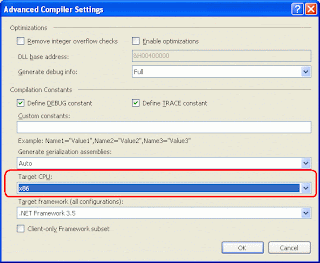
The solution to fix this issue is to change the target platform of your development from "AnyCPU" to "x86".

a). Go to project's properties.
b). Select the "Compile" tab.
c). Click the "Advanced Compile Options..." button.
d). Select "x86" in "Target CPU:".
e). Please make sure you do the same for Debug mode and Release mode.

The server returned an invalid or unrecognized response

Error message: The Web server reported the following error when attempting to create or open the Web project located at the following URL: 'http://XXXXXX'.'The server returned an invalid or unrecognized response'.

Solution:
  • Go to your IIS.
  • In the "Authentication Methods", try to use "Anonymous access" and "Integrated Windows authentication".